
 Blog
Blog SOLIDWORKS: PhotoView 360 Rendering Options - What Do They Do??
PhotoView 360 Rendering Options
“A picture is worth a thousand words” is a well-known adage. PhotoView 360 allows SOLIDWORKS users to create photo-realistic renderings of designs before they have even been prototyped. These images can then be used for marketing purposes. There are a lot of variables that can go into creating renderings, that unless you are into photography, you probably don’t understand. I know I didn’t when I first started doing renderings.
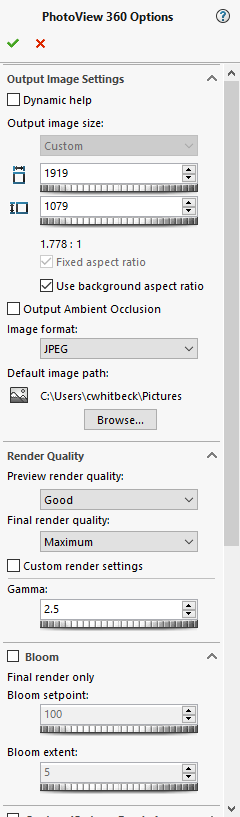
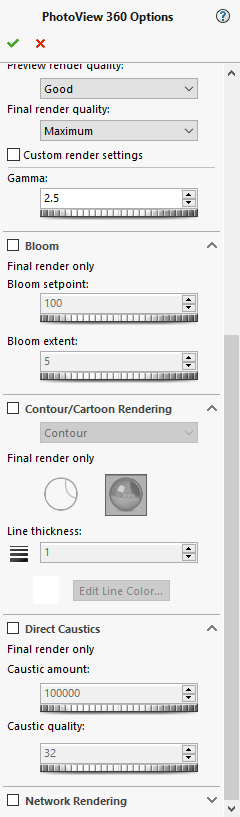
First, is the picture size. There are set aspect ratios to choose from, or you can create your own. Next we choose picture format type and render quality. I keep the Preview render quality at “Good”, which is the lowest quality. This allows for faster previews. Next is Gamma, which by default is set to 1.6. This is directly associated with brightness.
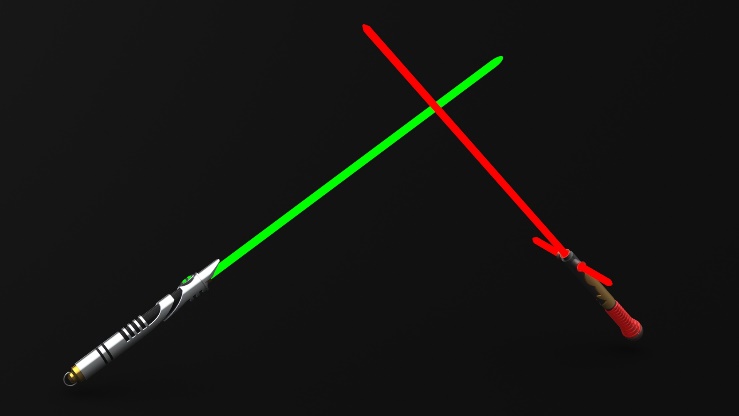
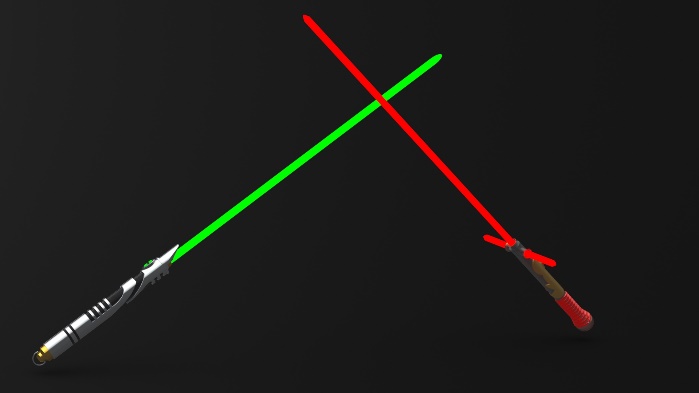
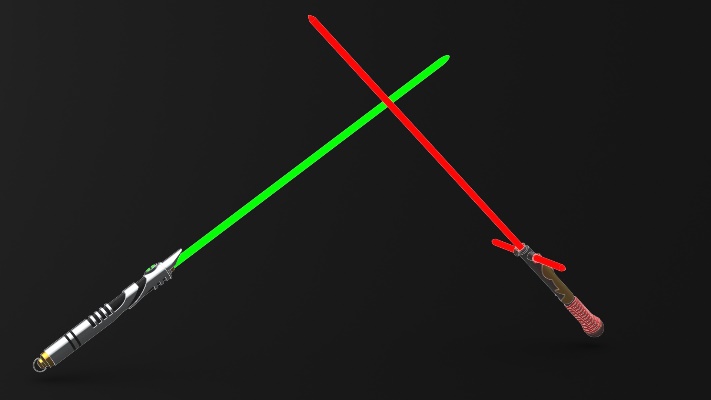
Gamma set to 1.6
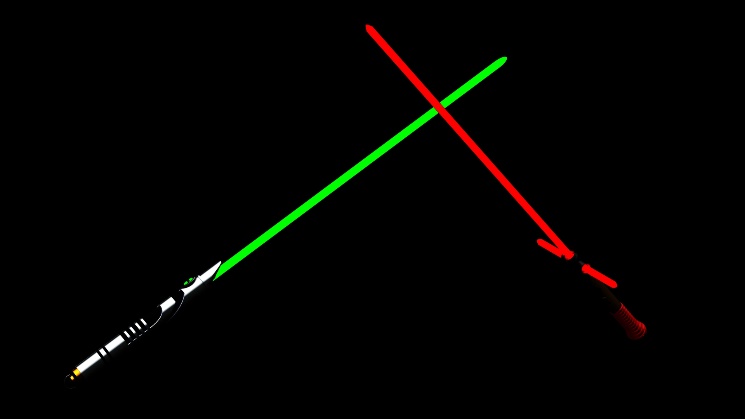
Gamma set to 0.5
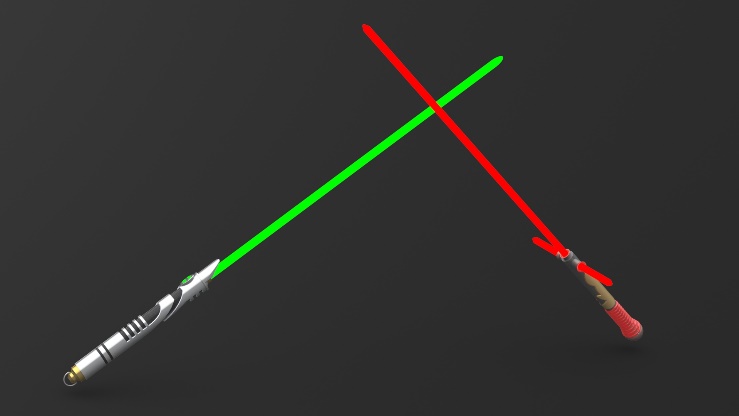
Gamma set to 2.5
Bloom is next, it creates fringes of light extending from bright light sources. Bloom setpoint sets the threshold point, for example a bloom setpoing of 50 applies bloom to anything with a white level above 50%. Bloom extent is the amount of bloom.
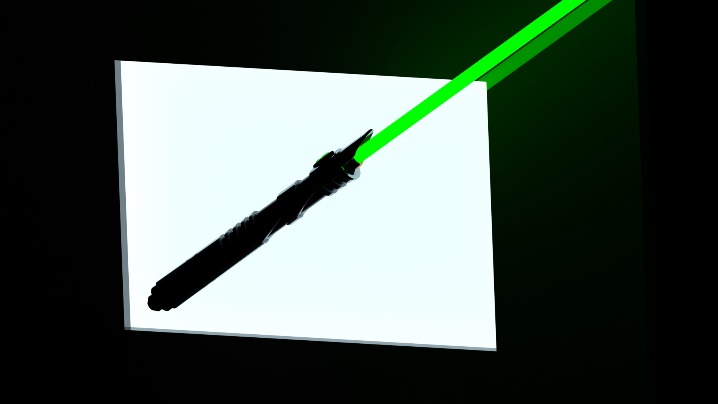
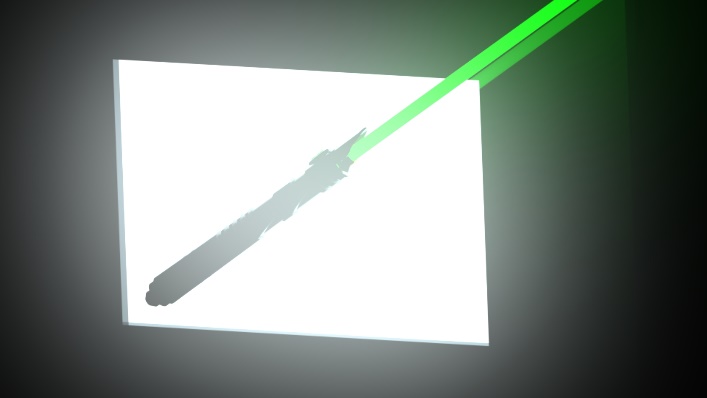
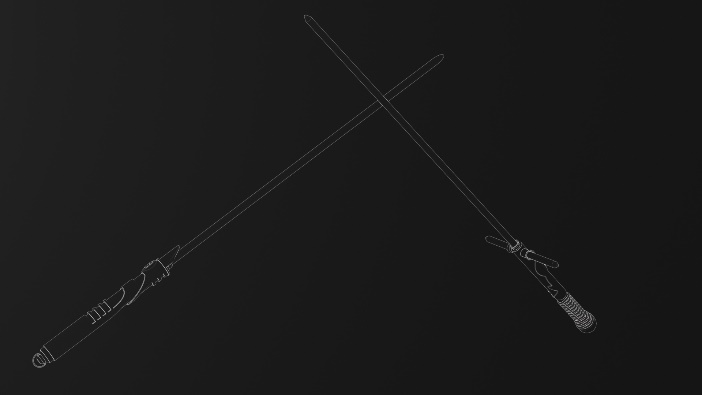
Next we can choose to use Contour or Cartoon Rendering. With Contour rendering we have two options, Render Only with Contours and Render Contours and the Solid Model.
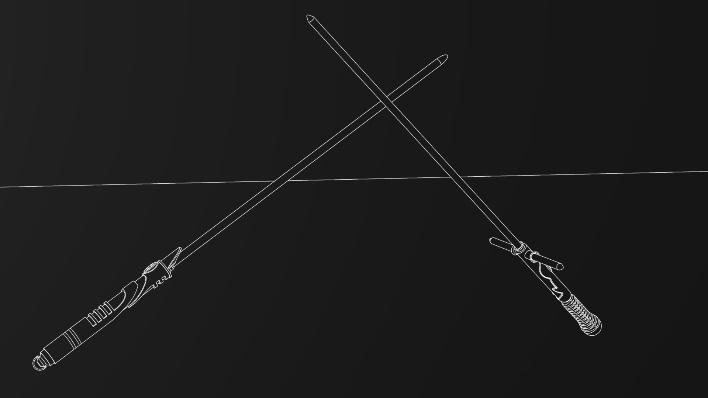
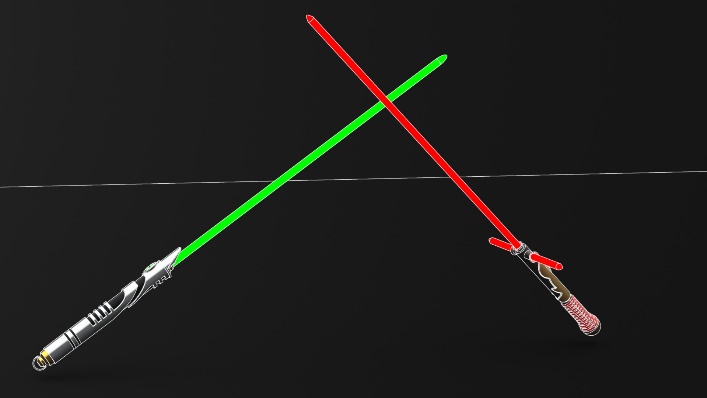
With Cartoon rendering, we have three options: Render only with cartoon edges, Render with cartoon shading, and Render with cartoon edges and shading.
Next, we have Direct Caustics. This is useful whenever light is going through a diffuse surface like light patterns underwater and focusing light from a diamond. Caustic amount sets the number of photons used in the scene, you can input 100,000 to 10,000,000. This is proportional; more powerful lights will receive more photons. Caustic quality controls the number of photons sampled at each pixal. Smaller values yield grainier effects while larger values creates a sharper effect. You can input 32 to 256.
The final option is to utilize Network Rendering to create your rendering faster. Renderings can take a lot of time to create and this can speed that process up.
Hopefully this blog will help you to create better and more detailed renderings.
Chad Whitbeck
CATI Application Engineer
Computer Aided Technology