
 Blog
Blog SOLIDWORKS 2021 Install Guide - Part 5 Draftsight
There have been many exciting features implemented in DraftSight 2020 including Auto-dimensioning, full support of AutoCAD Dynamic Blocks, etc. A full list of What’s New can be found here:
This article will be focusing on Installing DraftSight Enterprise and DraftSight Enterprise Plus. These products require the installation of a network license manager, in this case, the SOLIDWORKS SolidNetwork License Manager (SNL) for the following scenarios:
- Installing SNL for the first time
- Adding the DraftSight Enterprise or Enterprise Plus entitlement to an existing SNL installation
Installing the SNL Manager for the First Time
The SNL should be installed on a server. The installation software for the SNL is part of the download for SOLIDWORKS. Log in to your SOLIDWORKS Customer Portal
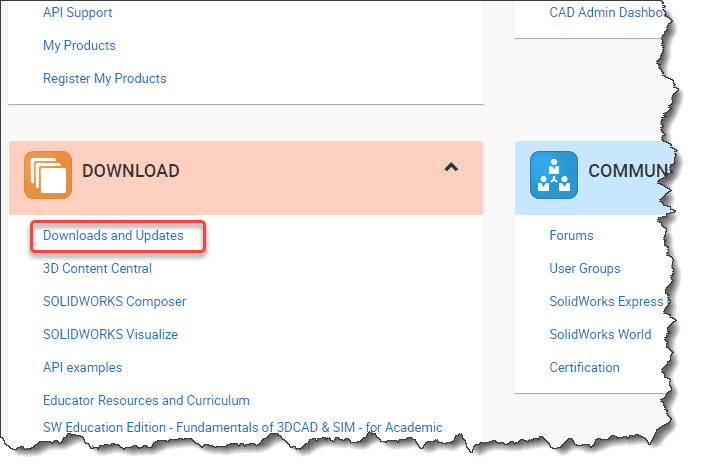
Select Downloads and Updates under Download
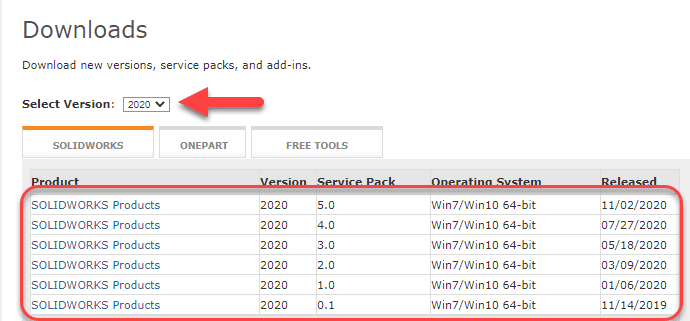
Select the version from the dropdown and then select the SolidWorks Product with Service Pack desited. It is always recommended to download the latest service pack when possible
PLEASE NOTE: DraftSight 2010 requires the same version of the SOLIDWORKS Network License manager or newer, however different service packs will not have any effect on the software
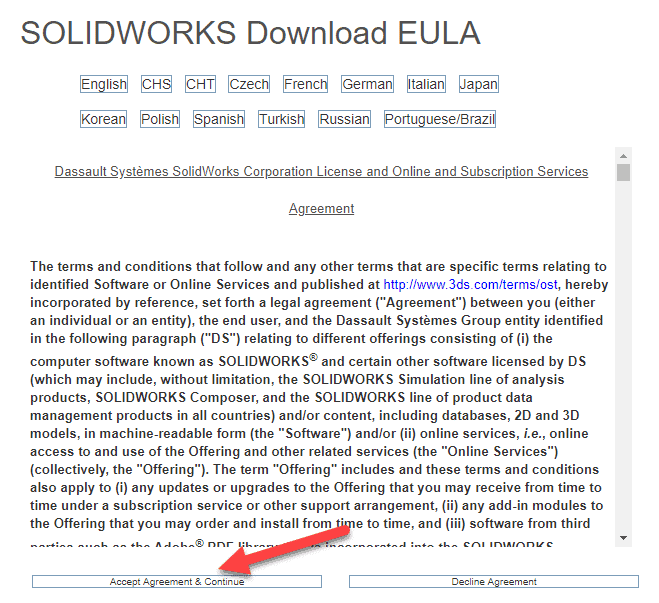
Accept the End User License Agreement (EULA)
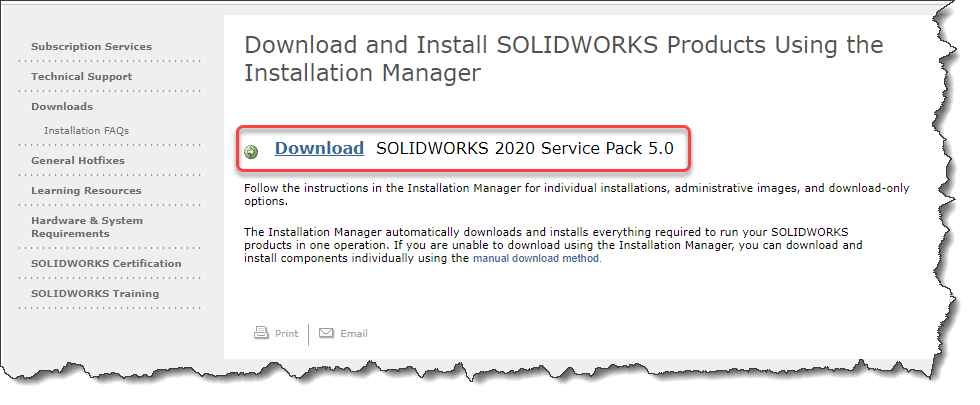
Click Download link
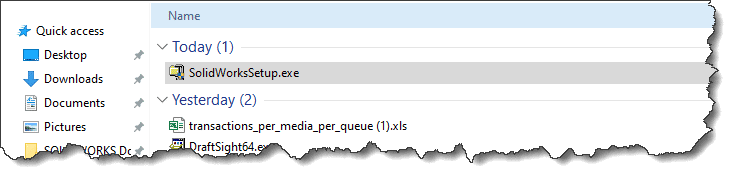
Double-click SolidWorksSetup.exe
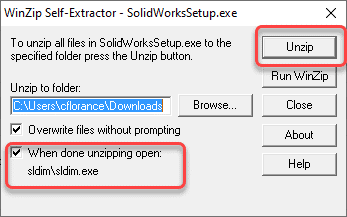
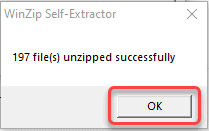
Change Unzip to folder as desired, make sure box is checked to open sldim/sldim.exe when unzip is complete; click Unzip. When complete, Click OK to launch the SOLIDWORKS Installation Manager (IM)
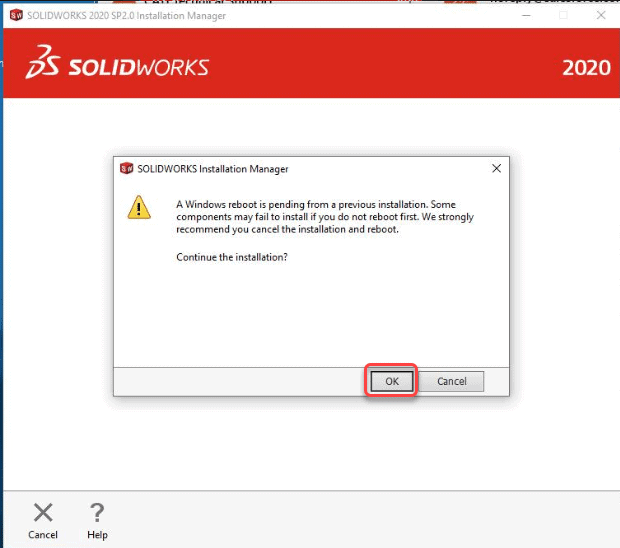
A reboot is not required at this time, click OK to continue the installation
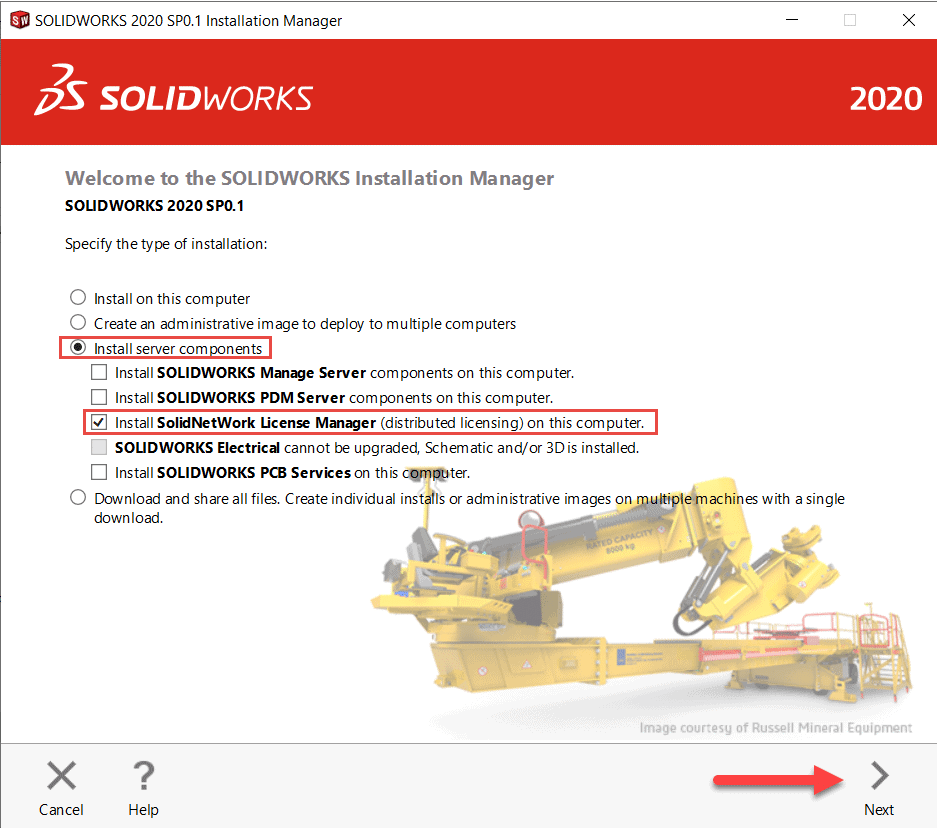
Select Install server components -> Install SolidNetWork License Manager
PLEASE NOTE: You will need Administrative privileges assigned to your user profile to complete the installation. If there are issues with installing, Cancel the Installation and return to the sldim folder. Locate the sldim.exe file; Right-click and Run as administrator
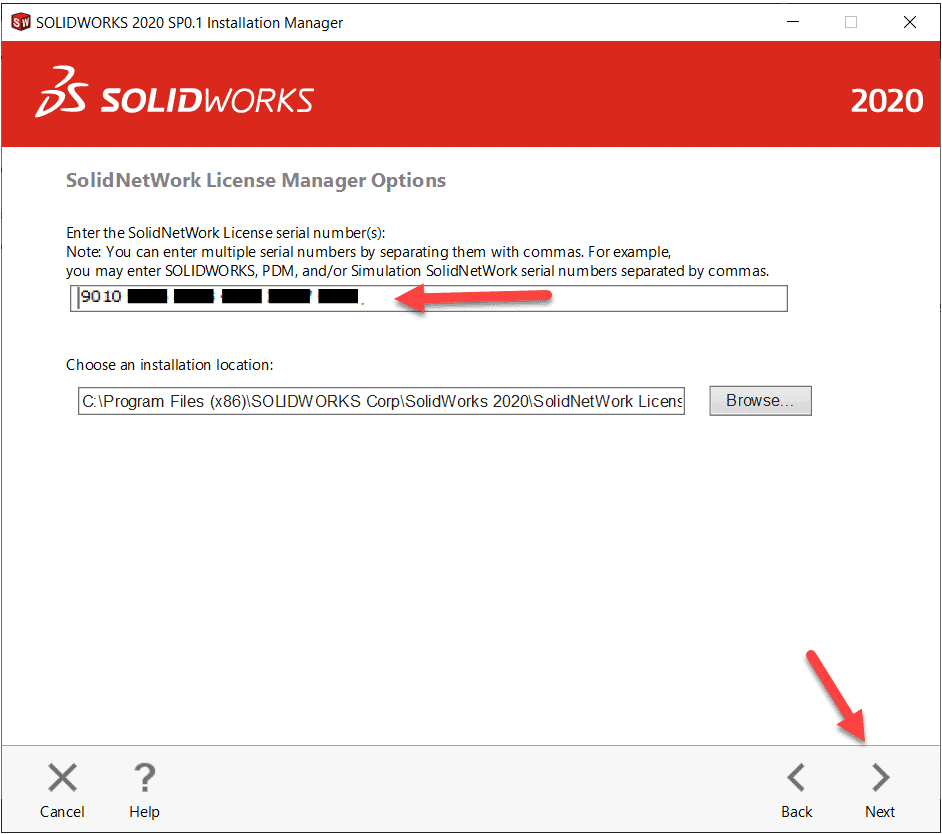
Enter your SolidNetWork serial number to the blank field and click Next
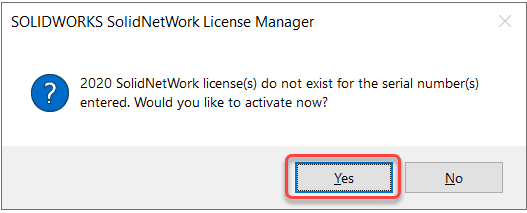
When the installation is complete, launch the SNL on the server; you will be prompted to activate; select Yes
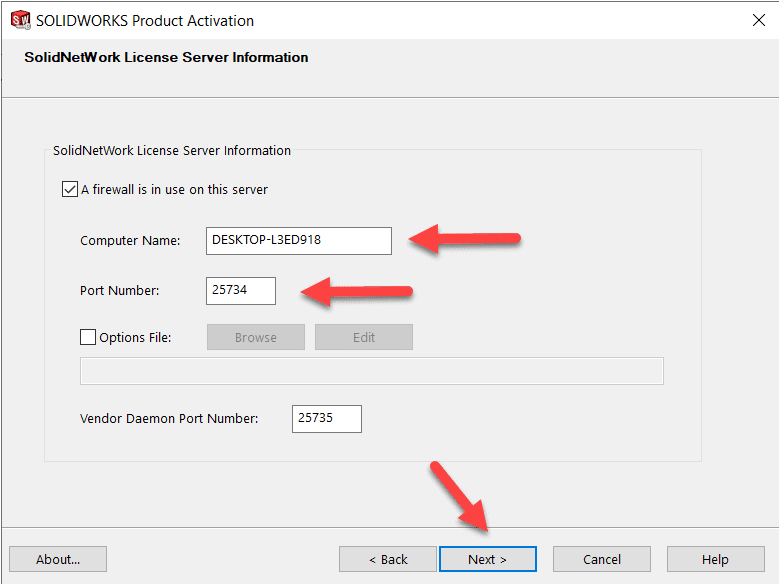
Verify Computer Name (Server Name) and click Next
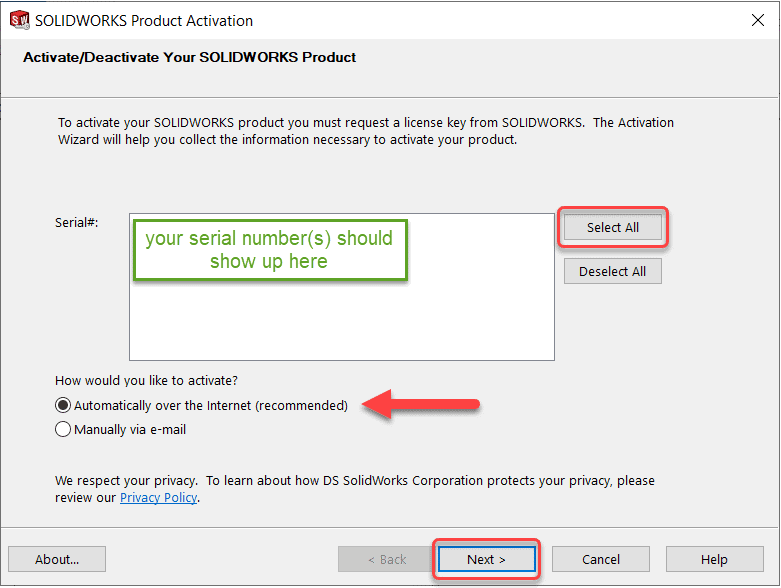
The SOLIDWORKS Serial Number(s) should appear; do a Select All and Automatically over the internet. In 2021, they have returned the requirement of a valid email address so add that if prompted; hit Next
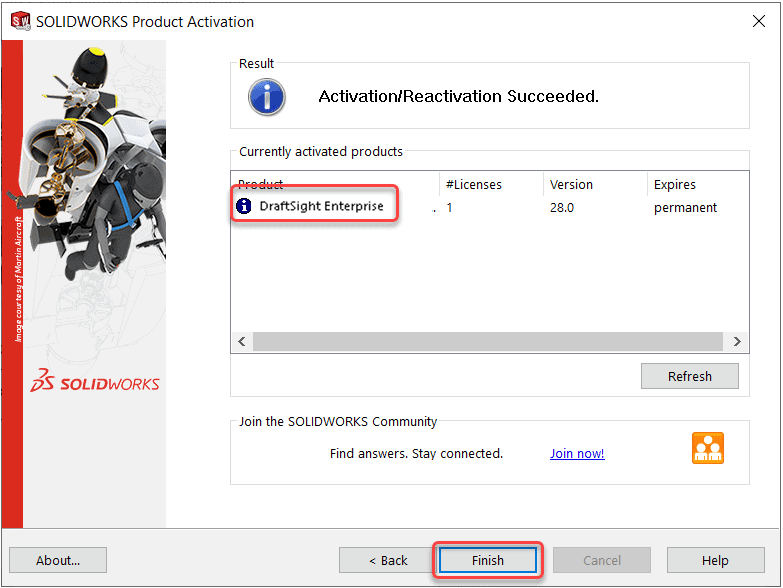
Once the activation is successful, the DraftSight license (and any other Products) should appear, click Finish
PLEASE NOTE: The version shown is the year of the release -8 (Ex: Version 28-8=20 – Version is 2020; Version 29-8=21 – Version is 2021)
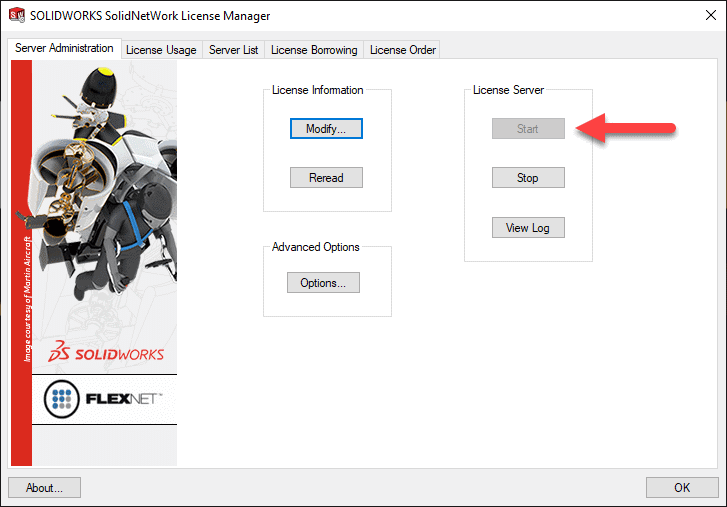
Verify the Start button has been selected; click OK to close SNL
Now the SNL Manager should be operational. The next step is to install DraftSight on the client machines. Please skip ahead to that section in this article for that procedure
Adding DraftSight to an existing SNL Manager
The first step is to determine if the SNL version is 2020 (Version 28) or newer
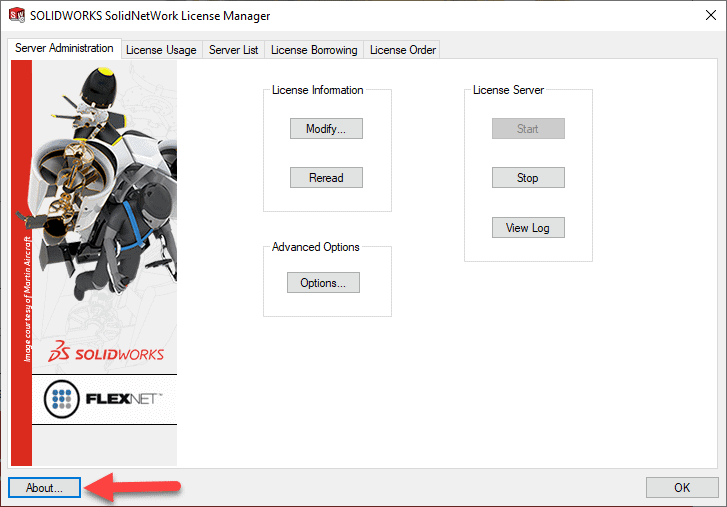
Launch the SNL on the server and click About, the Version shown should be 28 or higher
PLEASE NOTE: The version shown is the year of the release -8 (Ex: Version 28-8=20 – Version is 2020; Version 29-8=21 – Version is 2021)
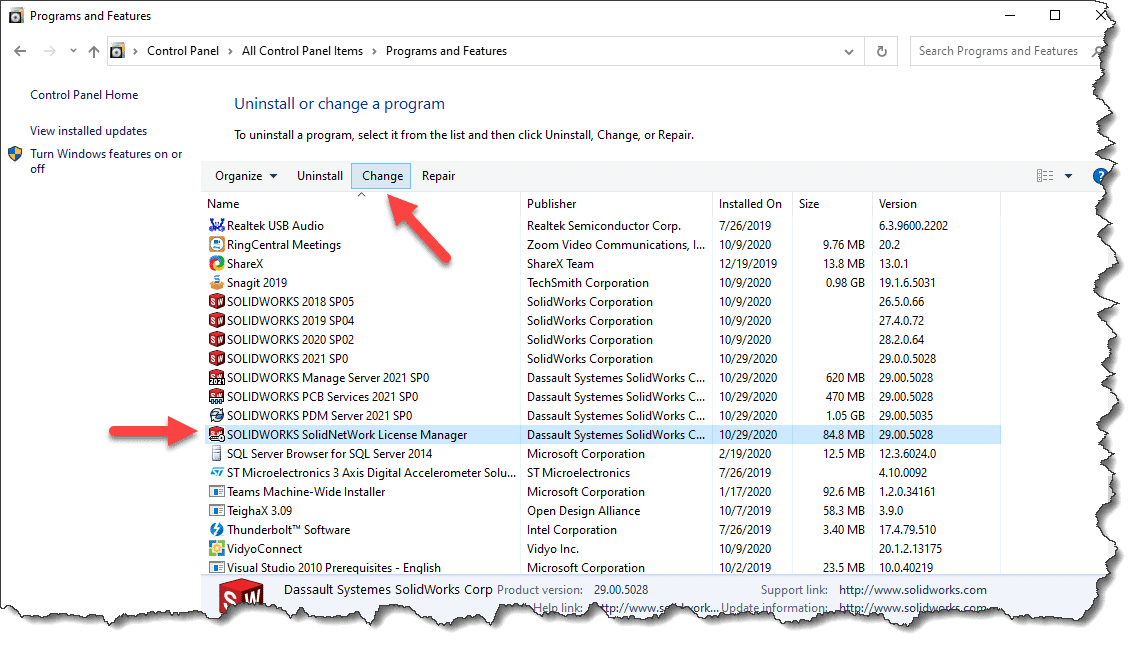
From Control Panel -> Programs and Features, select SOLIDWORKS SolidNetWork License Manager and select Change
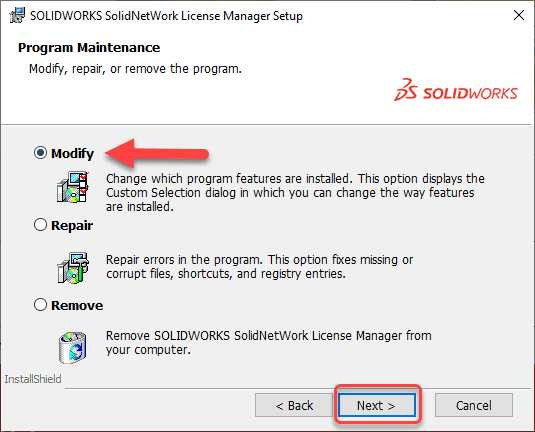
In the next dialog box, select Modify; then select Next
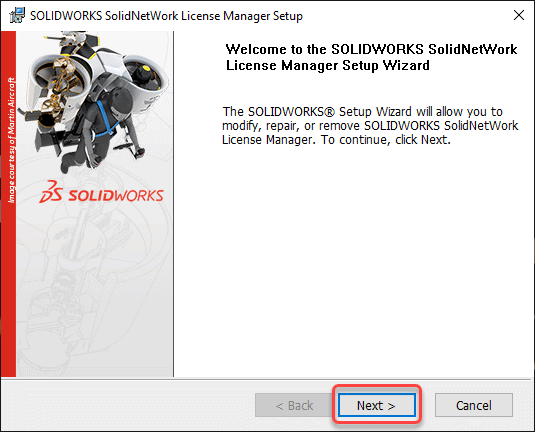
This will launch the SNL Setup Wizard; select Next
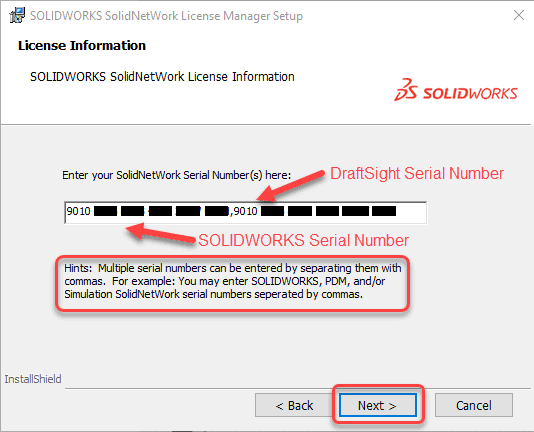
Next to the existing serial number, type in a comma and then enter your DraftSight serial number. Click Next to move onto the next screen and then select Install
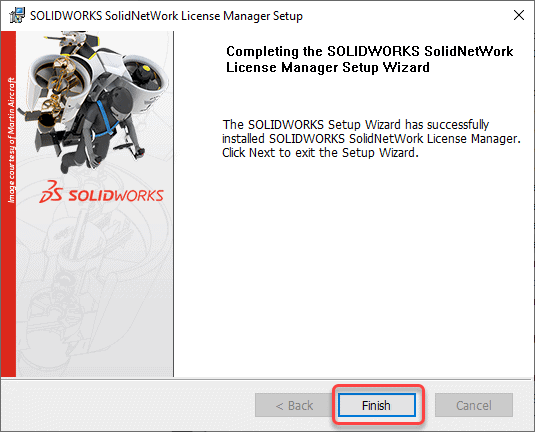
Click Finish to complete the install
Launch the SolidNetWork License Manager on the server
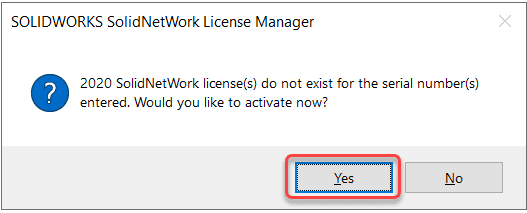
If prompted with an Activation Dialog box, click Yes and follow the prompts as described above with a new SNL installation
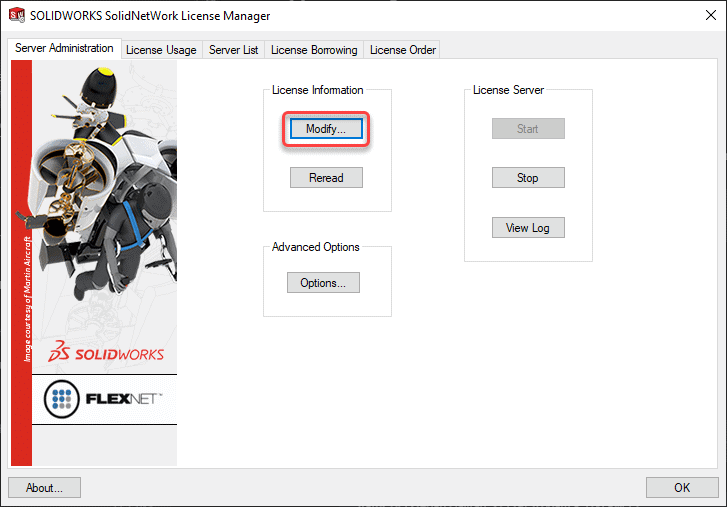
If not prompted to Activate the SNL will open, select the option to Modify
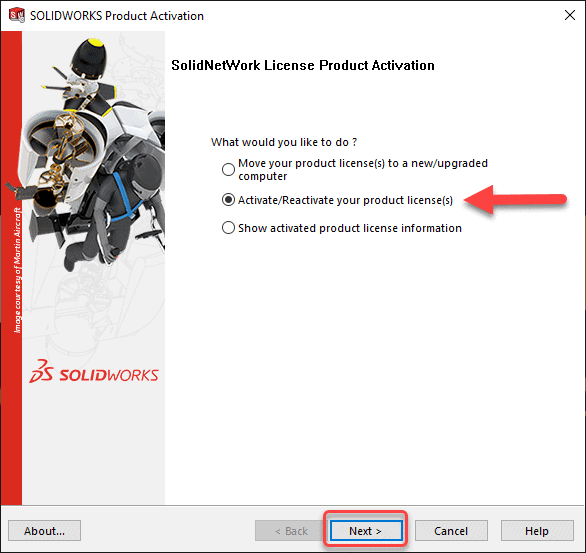
Select Activate/Reactivate your Product License, click Next
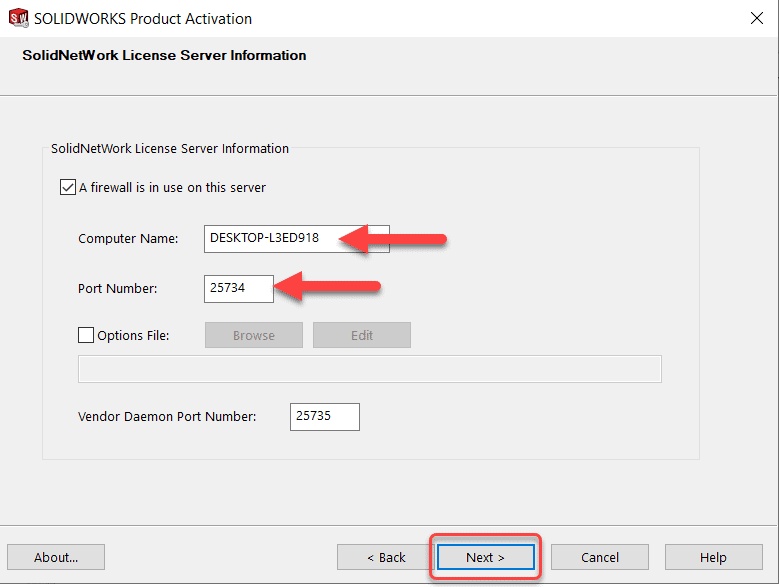
All default selections should be as they were during the initial install; keep the defaults and select Next
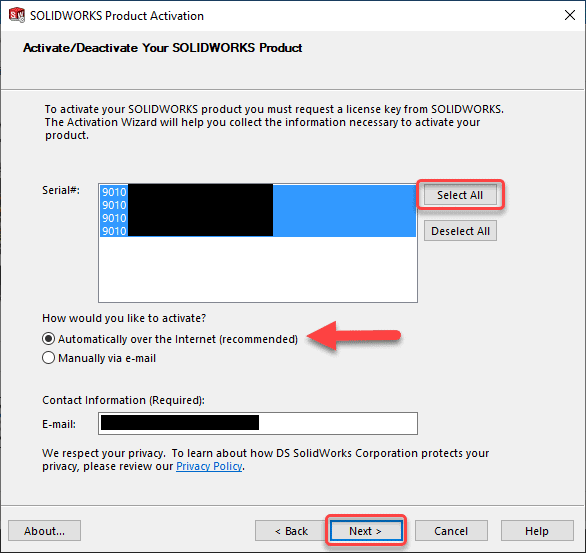
Do a Select All; Automatically over the Internet and add Email if required; click Next
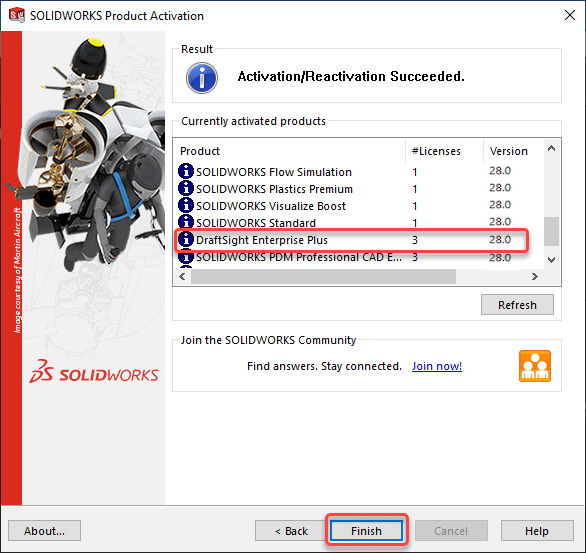
When Activation is complete, the DraftSight Enterprise license(s) Should now appear with any other existing Product License(s); click Finish
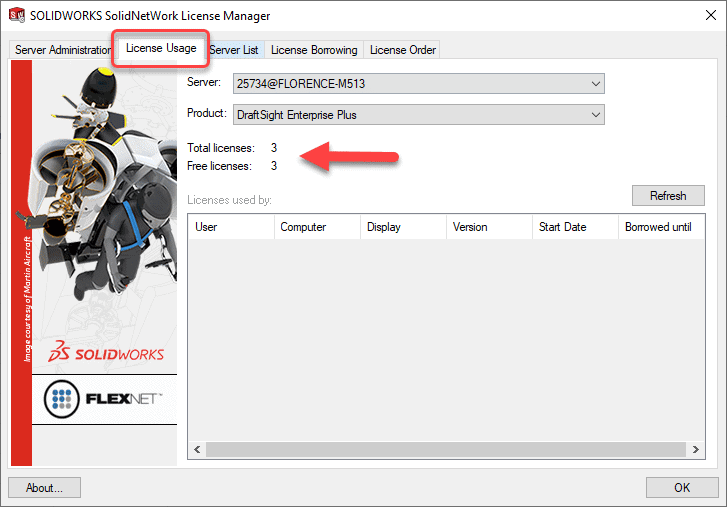
Click the License Usage tab and change the Product dropdown to DraftSight to see total licenses and free licenses available. Click OK to close out of the SNL
Installation of the DraftSight Client
To install the actual DraftSight software on the client machines, download the installation file from this web site: www.draftsight.com/download. Please note that there are different downloads for the 32-bit and 64-bit operating systems as well as for Mac
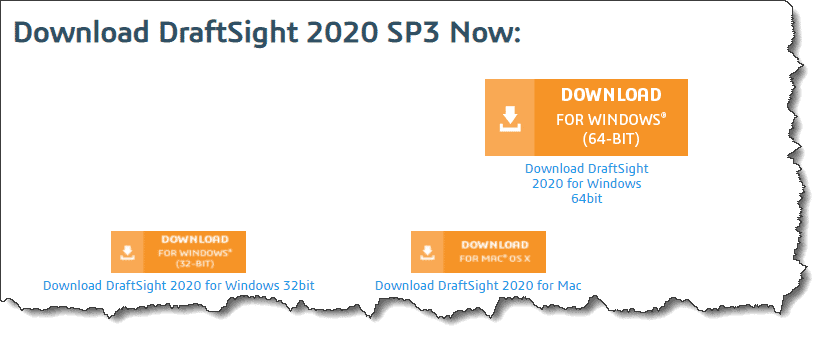
Select the Download needed
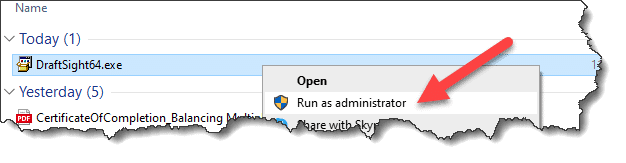
Once complete, right-click the DraftSightXX.exe file and Run as administrator
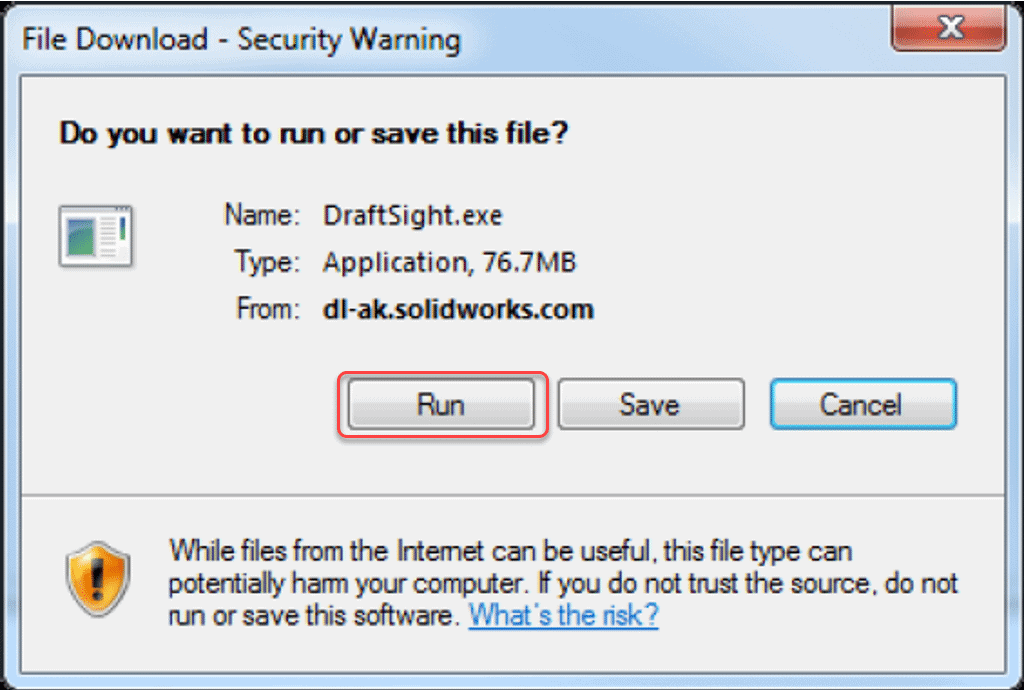
Click Run
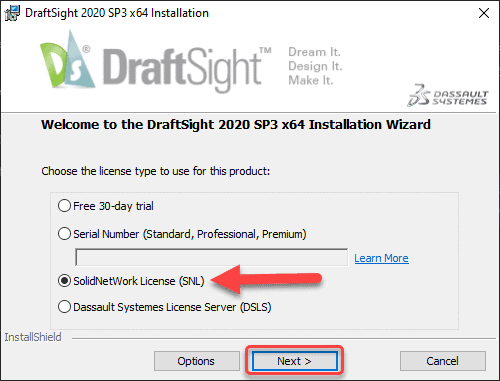
Make sure you specify the option for SNL; click Next
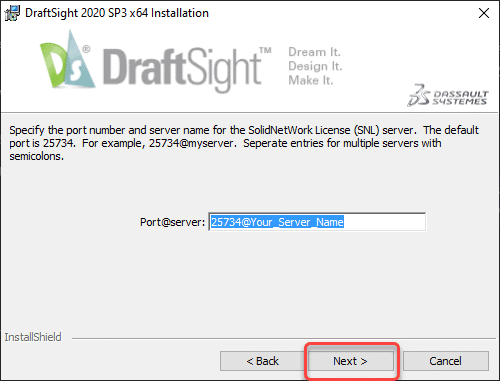
Ensure the port number@ server name are correct; click Next
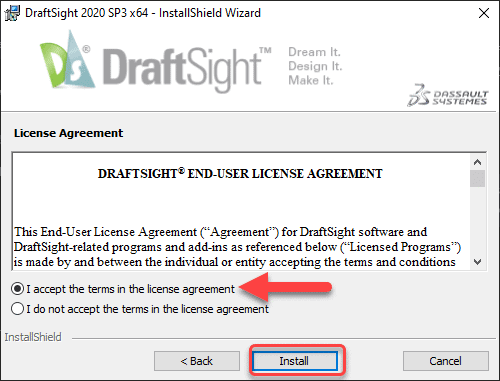
Accept the End User License Agreement and click Install
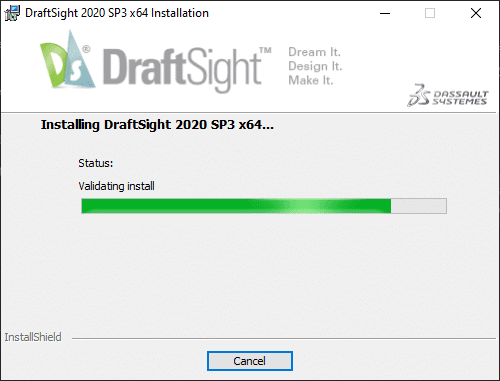
The installation will proceed…
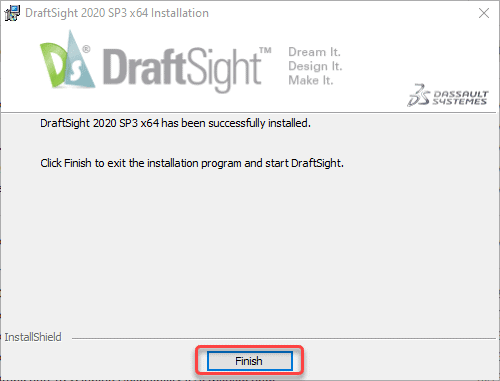
When install is complete, click Finish
This should launch DraftSight on the client machine and verify the client is properly connected to the SNL
We hope this part of this series gives you an understanding of how to get your network version of DraftSight installed and functioning. Please check back to the CATI Blog page as the team will continue to break down the new functions or products from Dassault Systemes.
- SOLIDWORKS 2021 Installation Guide Part 1 – Individual Installation (Neil Bucalo)
- SOLIDWORKS 2021 Installation Guide Part 2 – SOLIDWORKS SolidNetwork License Installation (John Van Engen)
- SOLIDWORKS 2021 Installation Guide Part 3 – SOLIDWORKS Electrical Installation (Jason Chon)
- SOLIDWORKS 2021 Installation Guide Part 4 – SOLIDWORKS Composer, SOLIDWORKS Simulation – Motion, Flow, SOLIDWORKS Plastics, and SOLIDWORKS MBD (Bryan Pawlak)
- SOLIDWORKS 2021 Installation Guide Part 5 – DraftSight and eDrawings (Cami Florence)
- SOLIDWORKS 2021 Installation Guide Part 6 – SOLIDWORKS PCB (Fred Zobel)
- SOLIDWORKS 2021 Installation Guide Part 7 – SOLIDWORKS Visualize (James Carlin)
- SOLIDWORKS 2021 Installation Guide – Part 8 SOLIDWORKS CAM (Ronnie Flaugh)
Cami Florence
Technical Support Manager
Computer Aided Technology, LLC